Showing posts with label Indicator. Show all posts

Install Xfce4 goodies in LinuxMint13xfce via synaptic

0
Recently I have installed LinuxMint13xfce in my friends pc. I choose LinuxMint13xfce for his older machine. If installed successfully and everything is working fine without any further download. Mp3, mpeg and other media files are playing without any update or download. I and my friend both are really happy with LinuxMint13xfce. Now I am going to install "Xfce4-goodies" for some extra plugins. I like to place them in the upper panel. Oh, yes there is no any top panel by default. I have created it just minutes ago.
xfce4-goodies in synaptic package manager of LinuxMint13xfce
Xfce4 goodies in LinuxMint13xfce
 Xfce4 Goodies is a bundle of various plugin whice are very helpfull for daily life. Here is the texts copied from synaptic package manager. It is an enhancements for the Xfce4 Desktop Environment.
Read More »

Install Xfce4 goodies in LinuxMint13xfce via synaptic

0
Recently I have installed LinuxMint13xfce in my friends pc. I choose LinuxMint13xfce for his older machine. If installed successfully and everything is working fine without any further download. Mp3, mpeg and other media files are playing without any update or download. I and my friend both are really happy with LinuxMint13xfce. Now I am going to install "Xfce4-goodies" for some extra plugins. I like to place them in the upper panel. Oh, yes there is no any top panel by default. I have created it just minutes ago.
xfce4-goodies in synaptic package manager of LinuxMint13xfce
Xfce4 goodies in LinuxMint13xfce
 Xfce4 Goodies is a bundle of various plugin whice are very helpfull for daily life. Here is the texts copied from synaptic package manager. It is an enhancements for the Xfce4 Desktop Environment.
Read More »

NetSpeed: Internet traffic monitor

5
You must use a network traffic monitor if you use internet as regular basis. I got a handy slim network traffic monitor years ago and I am using it from then. I love this applet very much. I add it in my top panel and always be active with it when I surf through online. It is a internet connection indicator, speed indicator, download and upload speed checker. It can show download and uploading speed on top panel.
Netspeed is an applet for the GNOME panel that shows how much traffic occurs on a network device (ethernet card, wireless LAN card, or dial-up).
So, It is a very important tool for everyone. You should use it when you love to hangout online whole day.Internet traffic monitor on Ubuntu Netspeed
You will get in 'Ubuntu Software Center' or in 'Synaptic Package Manager'. Search 'netspeed' and install it.
Read More »

Safely Remove USB Device on Ubuntu

0
When we insert an USB device on our computer, we want to safely remove it when work done. When you are on Ubuntu it is a easy task. I know you know it. You just go to 'Computer' then right click on the neme of usb device and click on 'Safely Remove Device'. The picture below publishing of a snapshot of this job.
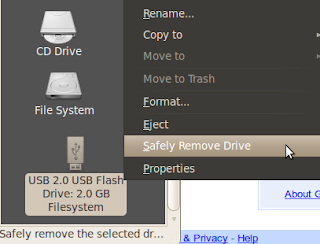
safely remove device ubuntu defaultIf you want to do this from directly from Desktop, quite more smartly, then you should use a handy little applet. Look at the image below.
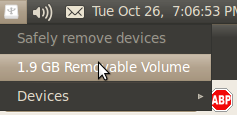
safely remove usb and other device with an appletYou need to install a little application, you may call it a taskbar applet or an application indicator. Download a tiny (Only 2.8 KB) deb file from this link. Double click the file named : "indicator-usb-0.2.1.deb". It will install an application indicator for easy USB device safe-removal. Version: 0.2.1

This is a installable deb file. So, I think it will work on all Debian based linux, like Debian Ubuntu, LinuxMint, Peppermint etc. Now, eject any usb device in a smart way. This cute and lovely little applet can handle all other device (include harddisk) which is mounted on your machine.

How to run it?
Press 'Alt+F2'. This shortcut will start 'Run Application'. On the command box write 'indicator-usb' and hit enter. It will run this applet.
If you do not want to run this applet every time, then make it start automatically when your PC start.
Add 'indicator-usb' to your Startup Applications

Both time it will start, run and stays hidden on top panel. When you insert or mount any device it will awake from hide mode and appear on top panel right side. You can do the rest clicking on that icon.

Maintainer of this indicator-usb pakage: Eugeny Pankov

Download this applet (Only 2.8 KB, deb file) from this link.
Read More »